Your STL Collection. One Simple App.
STL File Manager gives you a familiar Windows-style way to browse your own STL folders, preview models, select one or multiple files, and open them directly into your preferred slicer.
Keep the folder structure you already use. Simply choose your main STL collection folder and start browsing.
Simple STL File Management
If you already know how to browse folders in Windows, you already know the basics.
Browse Your Own Library
Choose your existing STL collection folder and browse your own categories and subfolders.
Built-In STL Preview
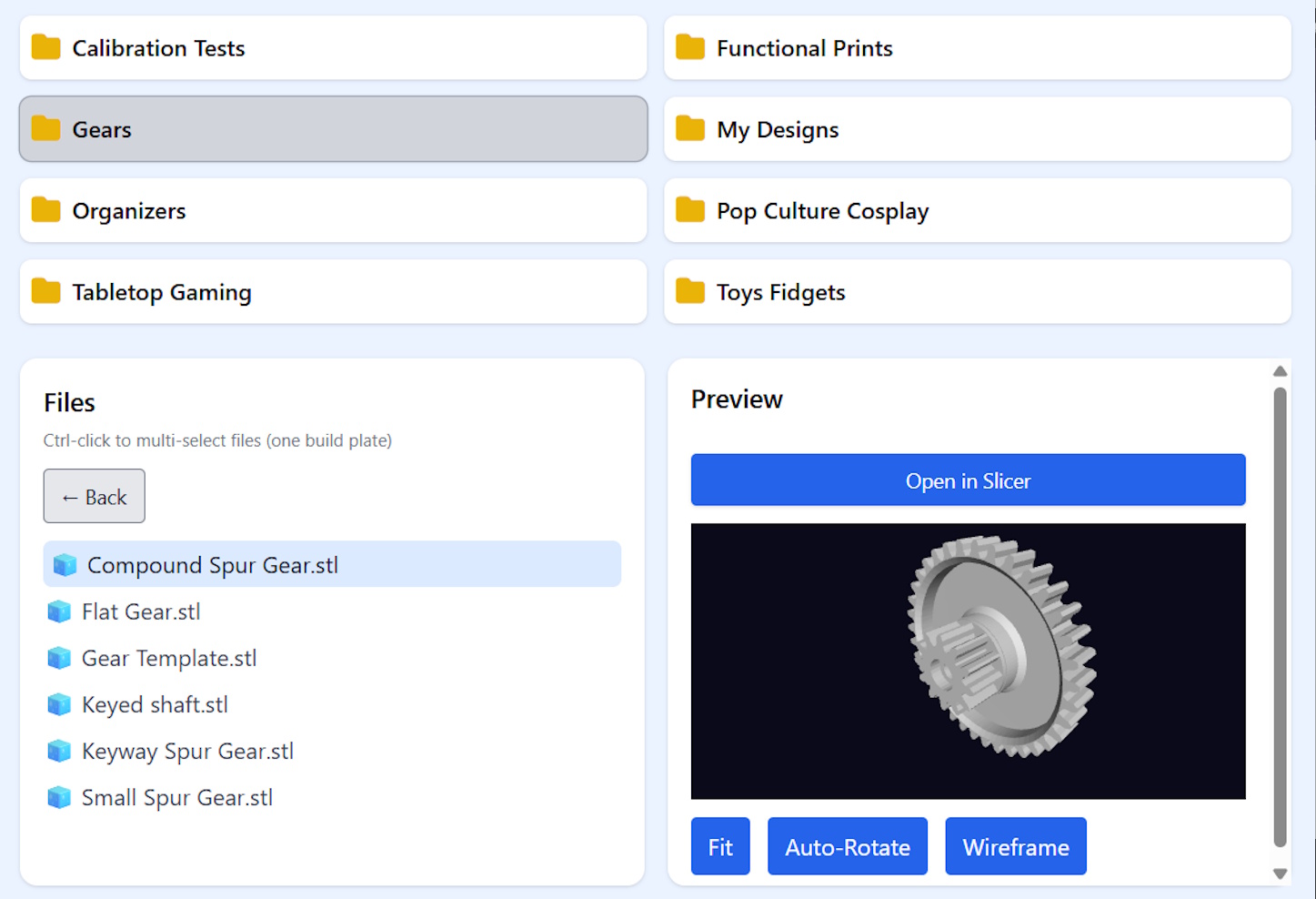
Rotate, zoom, fit, auto-rotate, and inspect models without opening your slicer first.
Open into Your Slicer
Open one STL or select multiple files and send them directly to your preferred slicer.
Free Sample Tools
The app also includes five free 3D-printable Sample Tools to explore and print.
See STL File Manager in Action
Browse folders, preview STL files, select multiple models, and open them directly into your slicer.
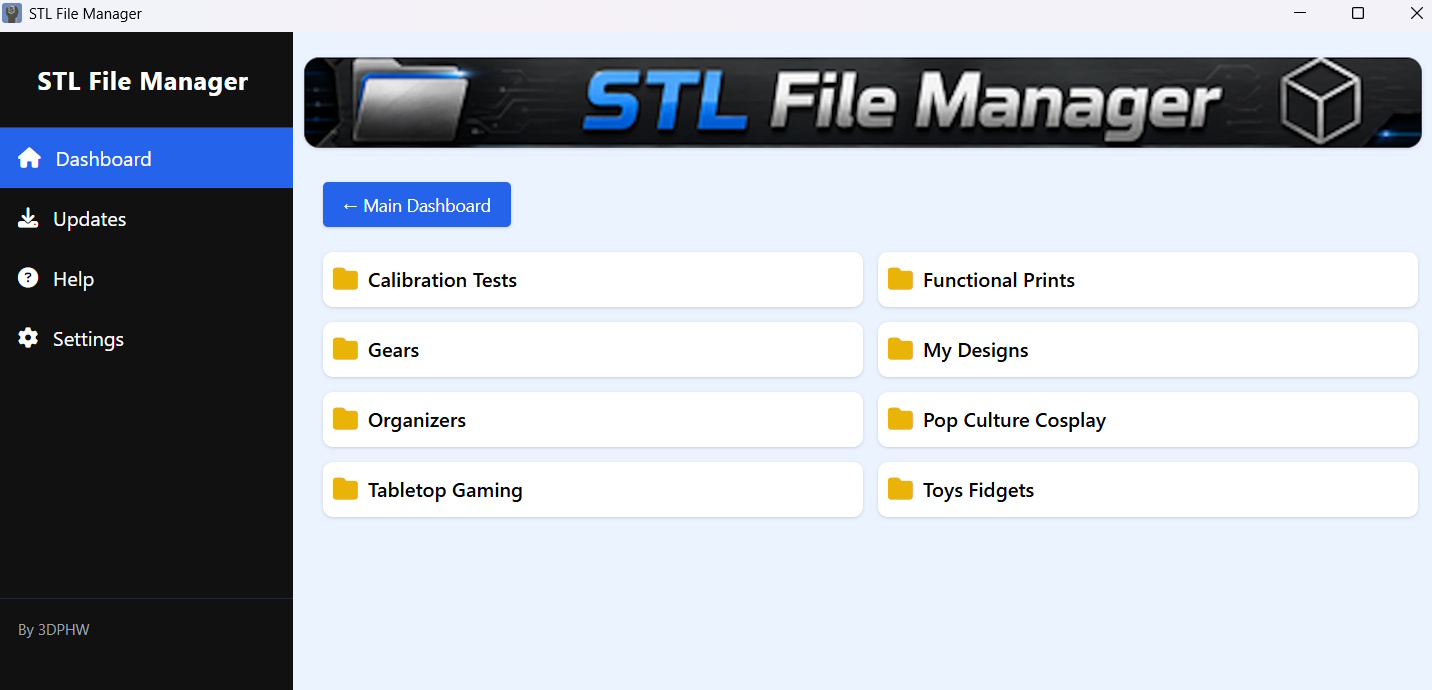
Your STL Library at a Glance
Choose your main STL collection folder and STL File Manager displays your top-level folders as large, easy-to-browse category cards.
Your existing files stay exactly where they are. STL File Manager does not move, rename, delete, sync, or overwrite your personal collection.
- Keep your existing Windows folder structure
- Browse categories and subfolders
- Works with large personal STL collections
- Your personal files remain untouched
Browse. Preview. Open into Slicer.
Select an STL file and inspect the model in the built-in 3D preview before opening it.
Need several files on one build plate? Select multiple STL files and open them together where supported by your slicer.
- Rotate and zoom STL models
- Fit, auto-rotate, and wireframe controls
- Select one or multiple STL files
- Open directly into your preferred slicer
Start Browsing Your STL Collection
Download STL File Manager free for Windows,
choose your STL folder, and start browsing.